
How to Make Your Laptop Battery Last Longer on Windows and Mac
A few battery settings can make the difference between finishing a journey's work and hunting for a socket. Here's what to adjust and when to check battery health.
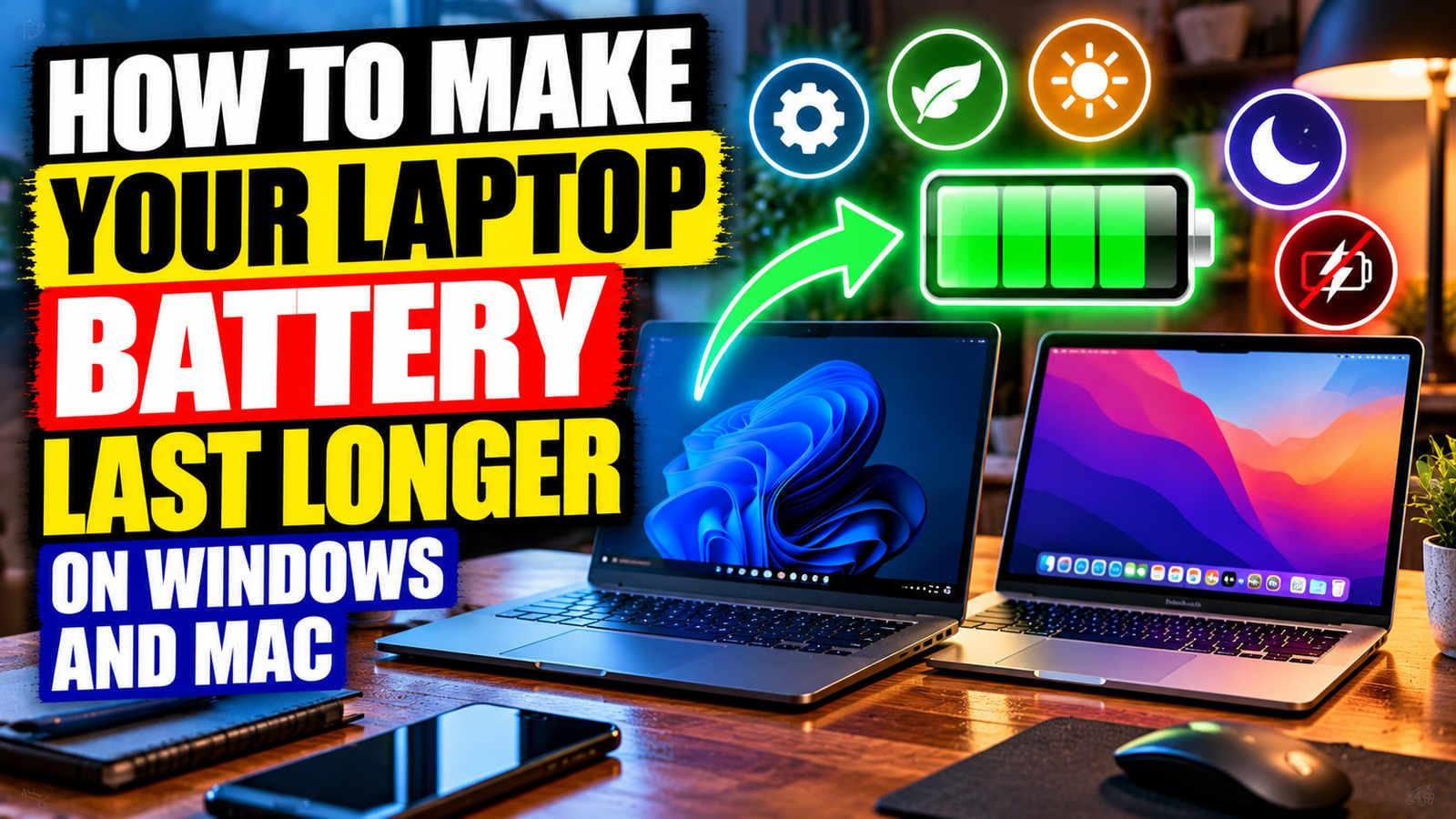
Laptop battery life is awkward to compare. A manufacturer’s headline figure might involve gentle web browsing with low brightness; a real working day can mean video calls, twenty browser tabs and a screen bright enough for a train carriage. The useful question is not whether you can achieve the advertised number, but which settings are draining your particular laptop.
Before replacing a battery, run through these checks on a day when you are using the machine normally. Make one change at a time so you can tell what has helped.
Start with the screen and the apps
The display is an obvious place to begin: reduce brightness to a comfortable level, shorten the screen-off timer and avoid running the highest refresh rate if you do not need it. If the laptop sits beside a monitor, consider whether the built-in display needs to remain on.
Look for unusually heavy apps. A browser tab playing video, a meeting app or a background file sync can keep the machine busy when you think it is idle. On Windows, battery usage information is available under Settings → System → Power & battery on supported versions. On a Mac, use System Settings → Battery and Activity Monitor to investigate recent usage and demanding processes.
The useful Windows settings
Microsoft's current Windows 11 guidance points to Settings → System → Power & battery → Energy recommendations. Review the recommendations individually rather than applying settings you do not understand. The same area lets you select an efficient power mode, use Energy saver and control screen and sleep behaviour.
If you need maximum speed for a demanding task, an efficient power mode may not be the right choice at that moment. Switch back when the work is complete. Battery savings that make the laptop frustrating to use are unlikely to become a lasting habit.
What to change on a MacBook
Open System Settings → Battery. Depending on the model and macOS version, you may see Low Power Mode, energy settings, battery condition and charging optimisation. Low Power Mode can help during a long journey; higher-power options on certain MacBooks are designed for demanding workloads and consume more energy.
Apple's battery settings can also show charge history and whether service is recommended. Not every option appears on every model, so do not spend time searching for a setting your hardware does not offer.
Treat heat as a clue
A laptop that is unusually hot while apparently idle deserves attention. Check for a process using resources continuously, make sure ventilation openings are unobstructed and use the machine on a firm surface. A blanket or soft cushion can obstruct cooling. Keep the operating system and frequently used apps updated, and investigate persistent heat rather than installing a utility that promises impossible gains.
Battery wear is different from short-term drain. If an older laptop shuts down unexpectedly or the battery condition reports service is needed, settings alone may not solve it. A swollen battery should not be pressed, punctured or used; stop using the device and seek qualified repair advice.
Keep a short comparison rather than chasing a single battery percentage. Charge the laptop, note the display brightness and what you are doing, then compare similar sessions before and after changing an energy setting. Video calls and games use much more power than writing a document; that does not by itself mean the battery is defective. If a battery is swollen, unusually hot or physically damaged, stop using the device and seek the manufacturer's safety advice rather than opening the case yourself.
Don't confuse runtime with battery lifespan
Saving power on one charge and slowing long-term battery ageing are related but separate questions. Charging optimisation and charge-limit options, where available, address long-term battery management. They are not a universal instruction to hold every battery at an arbitrary percentage.
Keep the charger specified for your device handy for unusually demanding work. If battery life has suddenly collapsed, check what changed recently: a software update, a new app, a peripheral or a damaged charging cable may be more relevant than the machine's age.
Sources: Microsoft's Windows battery-saving advice, Windows 11 power settings and Apple's Mac battery settings.
Sources

Musa Ersoy
Musa Ersoy is an editor and writer at DEFUXA Global News, covering developments in the United Kingdom and around the world. He researches news stories using official statements, credible sources and independently verifiable information. His editorial work focuses on factual ac…
Author profile and articles